Classes and Sessions on One Calendar
Set up each class once, with its days, times and clients. GymCity puts every session on your calendar, warns you when times clash and lets people ask to join from your public profile.
What is GymCity Classes & Calendar?
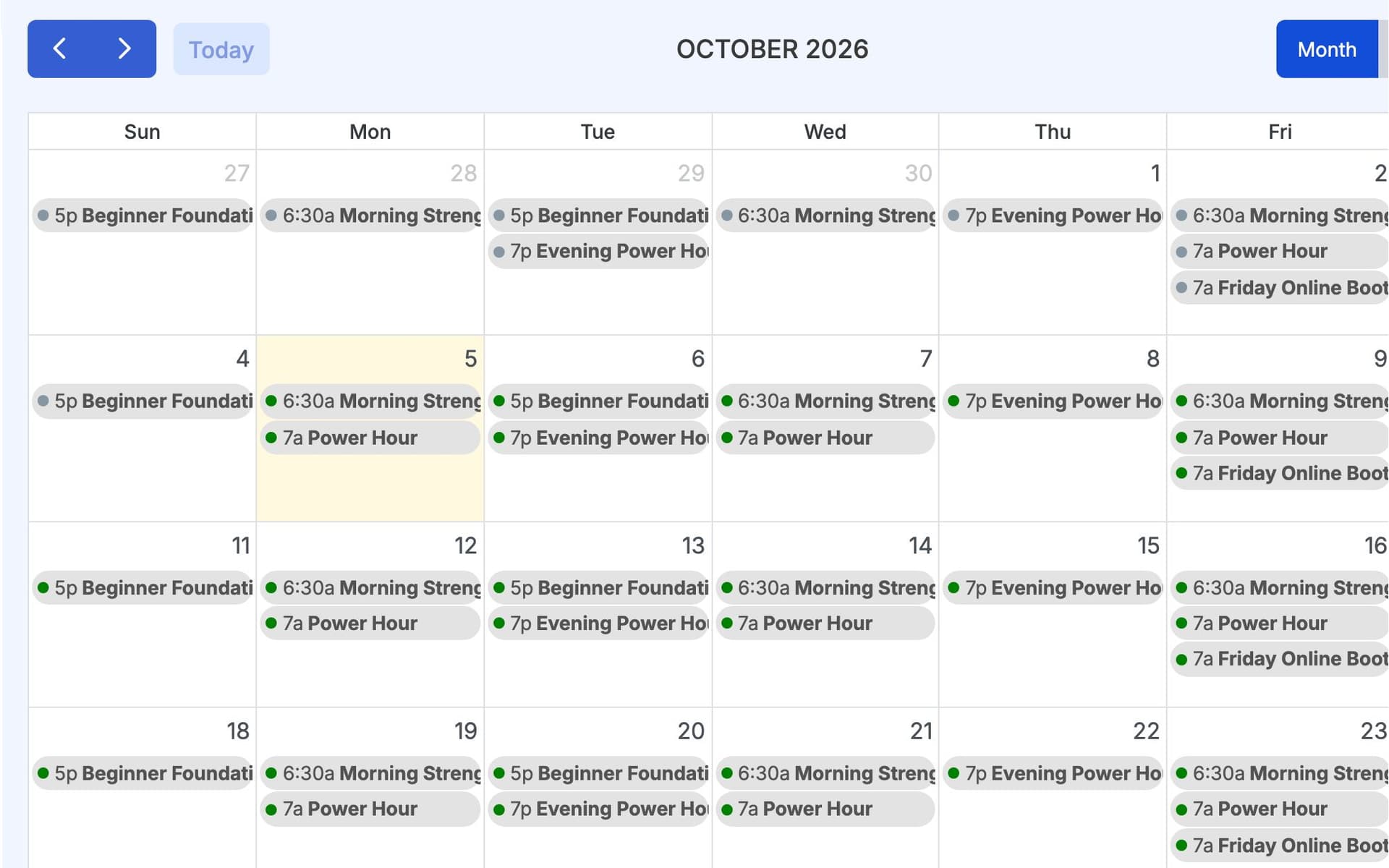
Classes & Calendar is the GymCity tool personal trainers use to run online, in-person or hybrid classes. Each class has weekly times, a start date, a client list and an optional capacity. Every session shows on a month, week or day calendar, and public classes appear on your profile so people can ask to join.
Why Trainers Use Classes & Calendar
Sessions in Your Head
Group classes, one-to-one clients and online calls quickly outgrow a notebook. Sooner or later a session gets forgotten.
Every session on one calendar.Clashing Times
Adding a new class at a time you already teach is an easy mistake when your week is full.
A warning when class times clash.Lost Enquiries
People who ask about a class on social media get buried under other messages and never hear back.
Class requests from your public profile.Classes & Calendar in 3 Steps
Create a Class
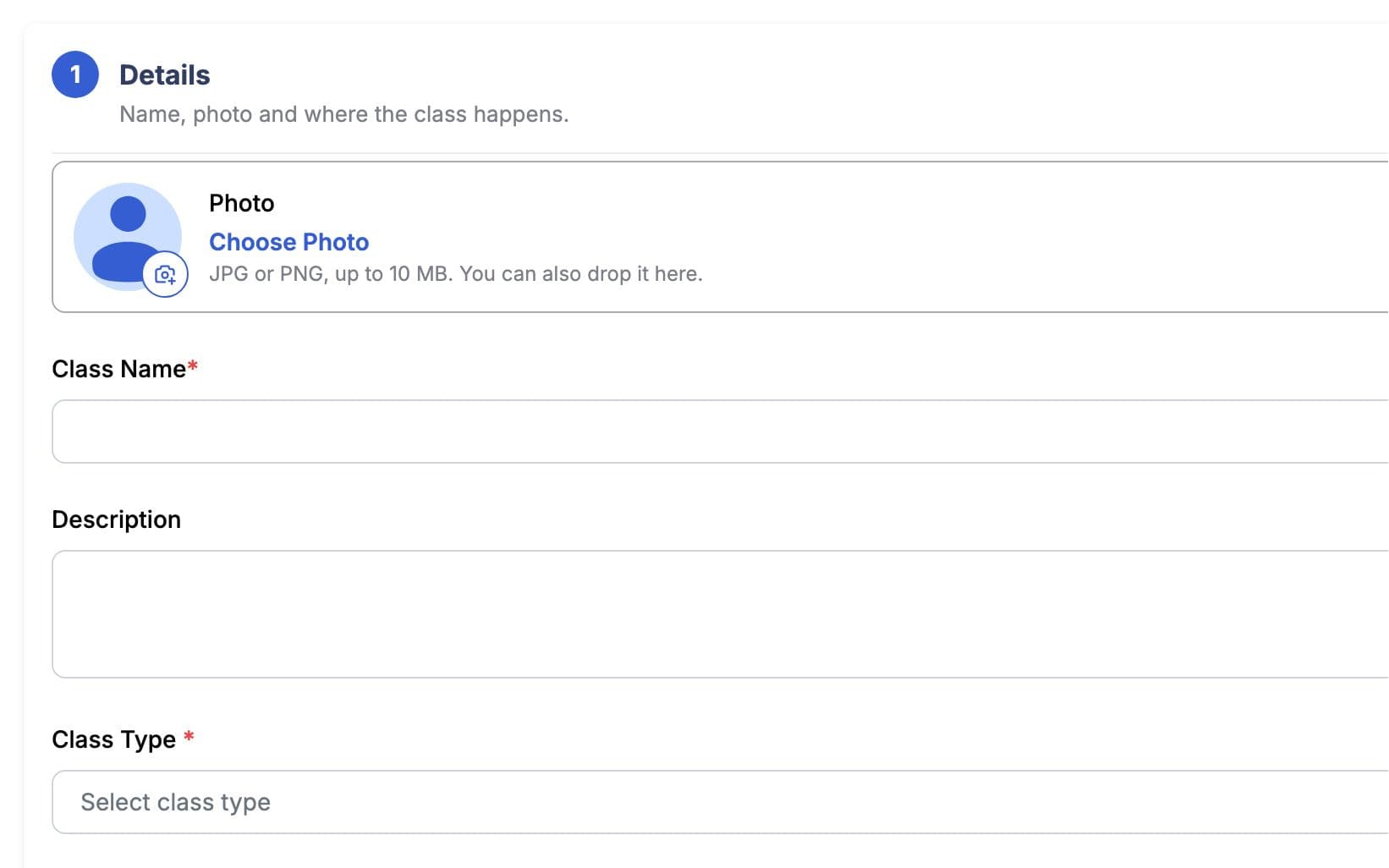
Name the class and choose online with a meeting link, in person with an address, or hybrid with both. Pick the weekdays and times, a start date and either an end date or ongoing. Set who it is for (men, women or everyone), an optional capacity and the package clients pay for.
Add Clients
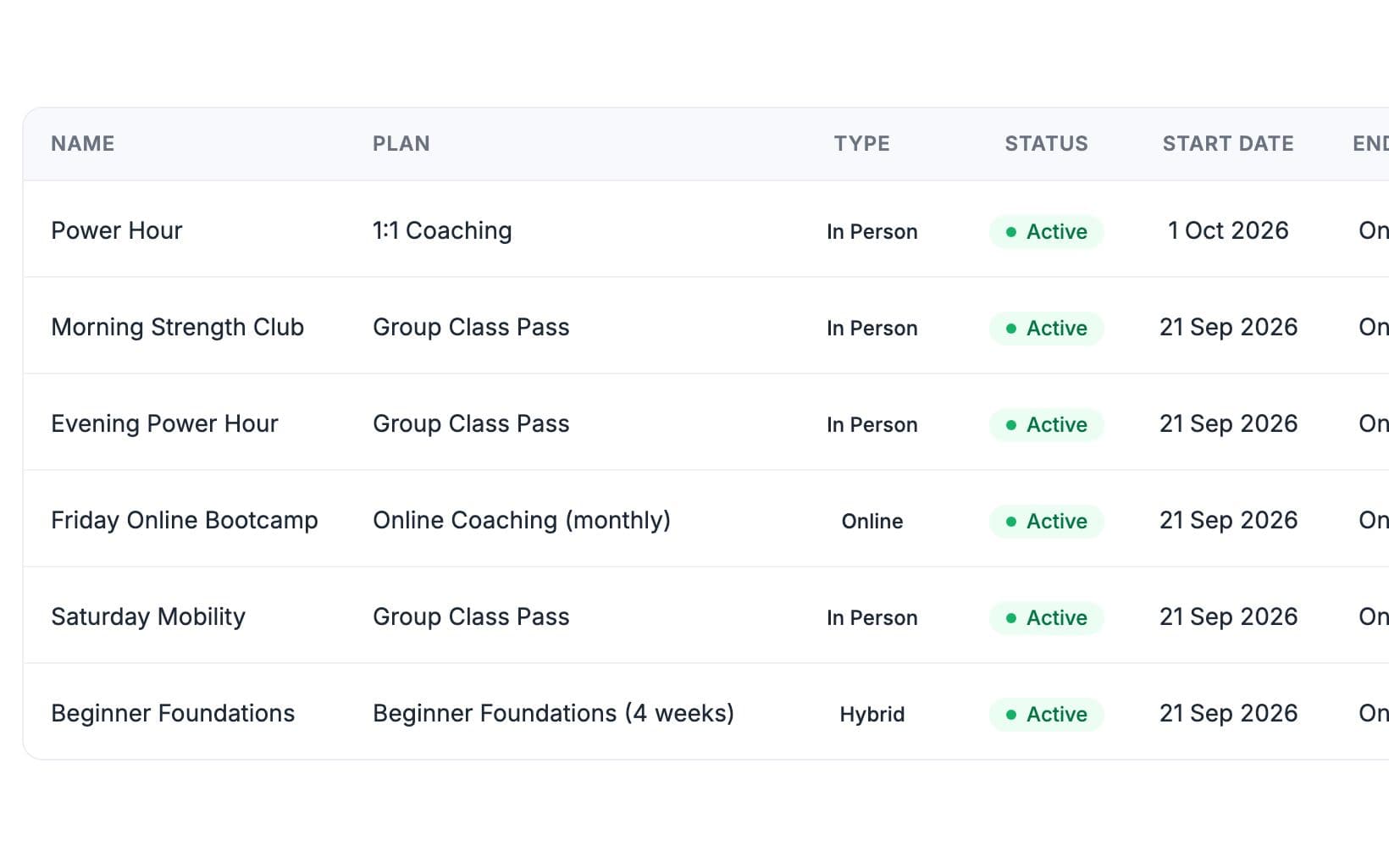
Each class keeps its own client list. Add your existing clients, move a client to another class when their schedule changes, or accept people who sent a class request from your public profile. Clients see their next session on their home screen.
Run Your Calendar
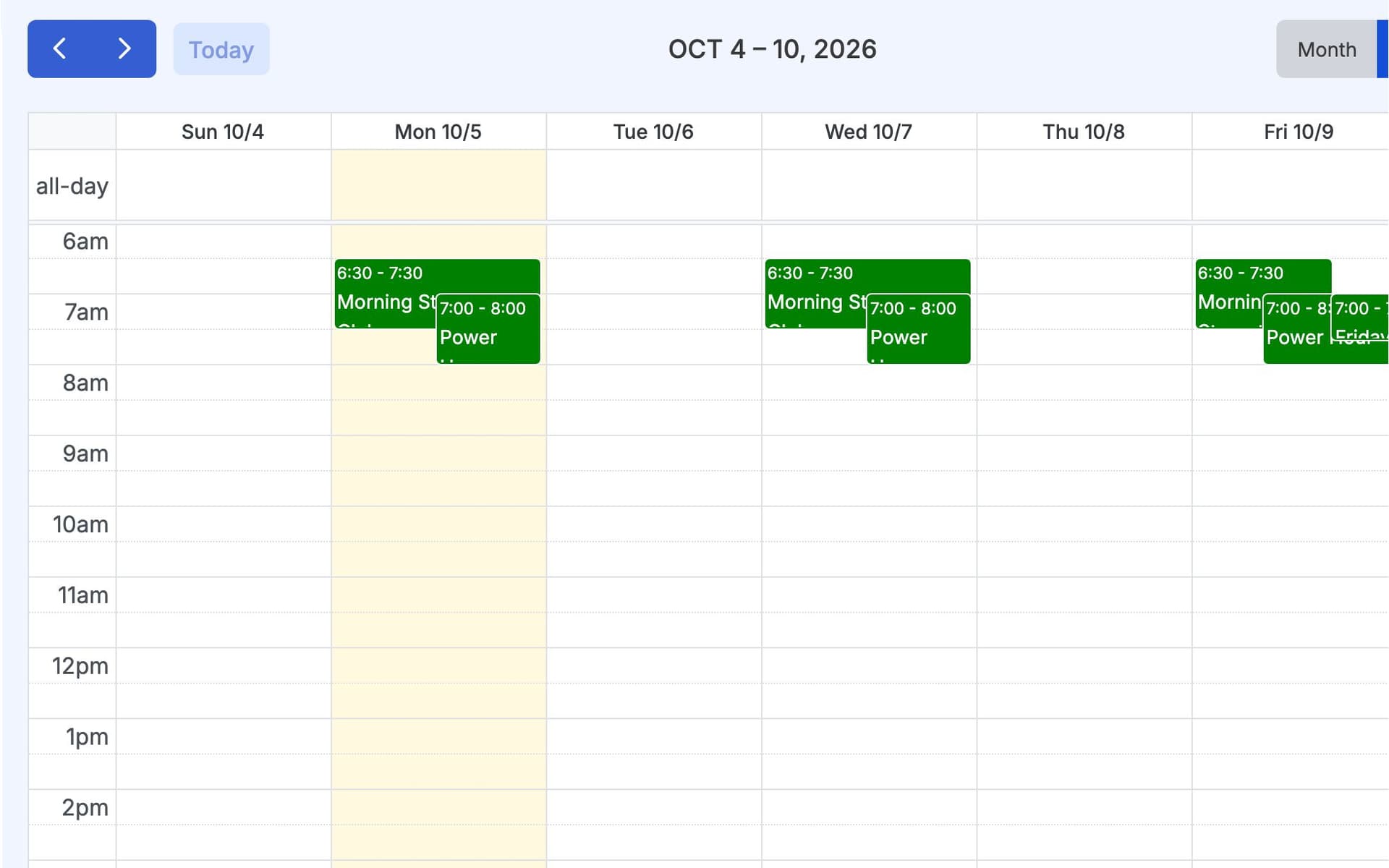
See every session by month, week or day in your own time zone; on a phone, the month view shows a dot for each busy day. Cancel or move a single session without changing the class. When a class with an end date finishes, GymCity switches it off for you.
Made for How You Work
Online classes carry the meeting link and in-person classes the address, so clients know where to be.
Group, online and in-person sessions together in month, week or day view.
Choose which classes to show publicly; visitors send a request and you decide.
What You Get With Classes & Calendar
Classes & Calendar FAQ
Short answers to what gym owners and trainers ask most.
All Questions →Yes. Choose Online and add a meeting link from the video tool you already use. For hybrid classes, add both a link and an address, so some clients join from home while others train with you in person. Your clients see the time of their next session on their GymCity home screen.
Yes. Open the session on your calendar and cancel it or move it to another date and time. The rest of the class stays as it is, so a holiday or a clash does not mean rebuilding the whole schedule. Let your clients know about the change by message as well.
If you show a class on your public profile, visitors can send a Class request from that page. The request reaches you in GymCity and you decide whether to add them to the class. GymCity sends requests only; it does not confirm places or take payment by itself.
Not yet. You can set a capacity for each class, but GymCity records it rather than enforcing it, so you can still add clients beyond that number. Check the client list before you accept a new request. The time clash warning works the same way: it tells you, and you decide.
Works Even Better Together
Last updated 15 October 2026Written by Sarwar HossainScreens show demo data only
Try Classes & Calendar With Your Clients
List as a trainer free today and turn on the tools you need when you are ready.