স্টাফ লগইন ও রোল পারমিশন
স্টাফ ও রোল ফিচার দিয়ে আপনার টিমের সবাই পাবে নিজের GymCity লগইন। জিমের মালিক ঠিক করবেন, কোন রোল কী দেখতে বা করতে পারবে, তাই ফ্রন্ট ডেস্ক শুধু মেম্বার চেক-ইন আর পেমেন্ট নিতে পারবে, মালিকের পাসওয়ার্ড ছাড়াই।
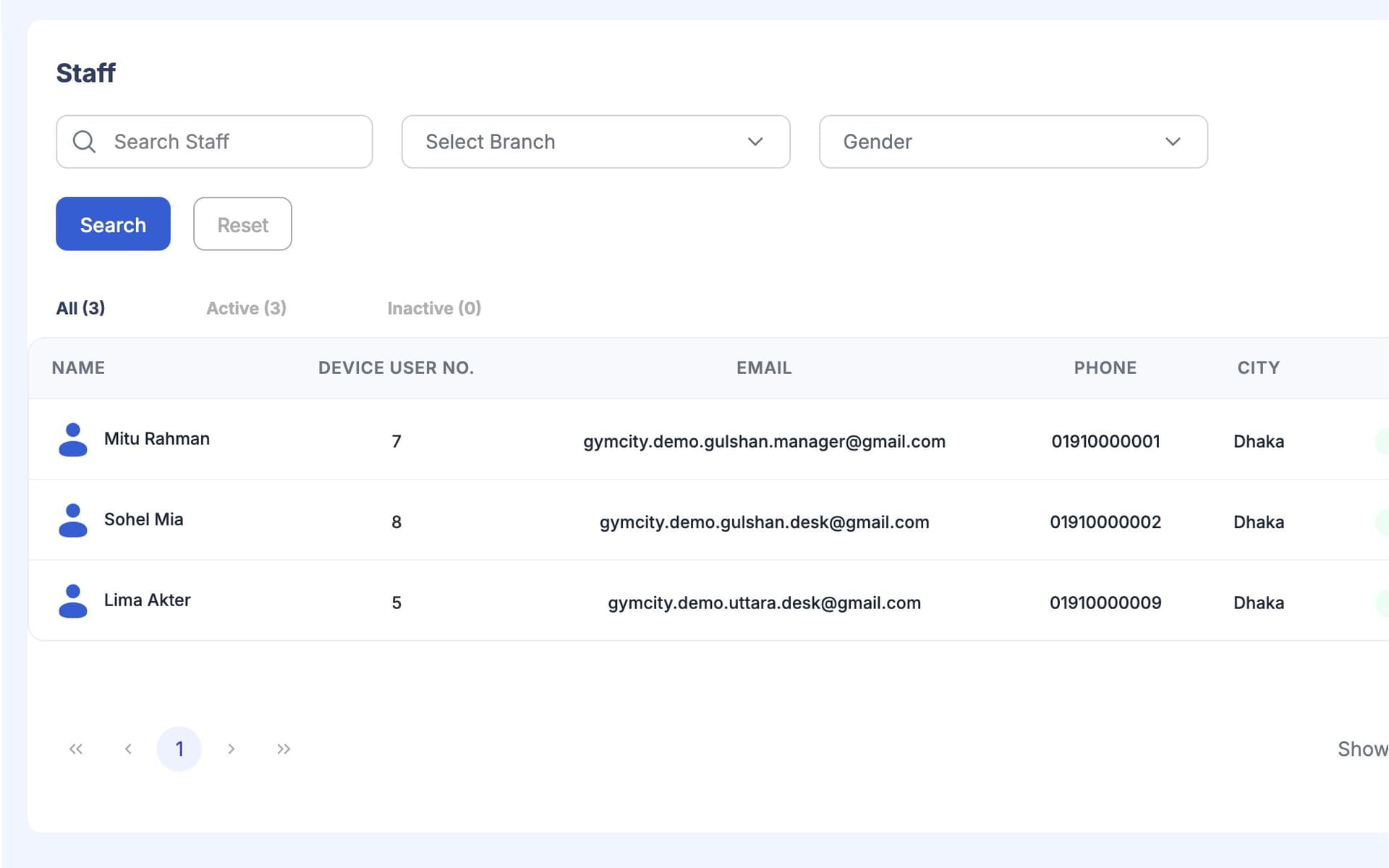
GymCity স্টাফ ও রোল কী?
GymCity স্টাফ ও রোল ফিচার দিয়ে প্রতিটা স্টাফ পাবে নিজের লগইন। জিমে শুরুতে থাকে Admin, Manager আর Staff রোল, চাইলে নিজের মতো নতুন রোলও যোগ করতে পারবেন। মালিক ঠিক করবেন, কোন রোল অ্যাপের কোন অংশে কী দেখতে, তৈরি, আপডেট বা ডিলিট করতে পারবে, আর সর্বোচ্চ কত ডিসকাউন্ট দিতে পারবে।
কেন জিমগুলো স্টাফ ও রোল ব্যবহার করেন
শেয়ার করা মালিকের লগইন
ডেস্কে সবাই আমার লগইন ব্যবহার করে। পাসওয়ার্ড বদলাতে হলে পাঁচজনকে বলতে হয়, আর কে কী করল বুঝতেও পারি না।
প্রতিটা স্টাফ পাবে নিজের লগইন।অতিরিক্ত অ্যাক্সেস
ফ্রন্ট ডেস্ক শুধু মেম্বার চেক-ইন আর ফি নিতে জানে। আমার লগইন দিলে তারা সব রিপোর্ট খুলতে পারে, এমনকি মেম্বারও ডিলিট করতে পারে।
রোল ঠিক করে দেয় কে কী খুলতে পারবে।কে করল এটা?
একজন মেম্বার বলল, গত মাসে ডেস্ক থেকে বড় ডিসকাউন্ট পেয়েছে। কেউ মনে করতে পারছে না কে দিয়েছে, আর কোনো রেকর্ডও নেই।
প্রতিটা বিলিং পরিবর্তন ইনভয়েস হিস্টরিতে রেকর্ড হয়।3 ধাপ-এ স্টাফ ও রোল
আপনার স্টাফ অ্যাড করুন
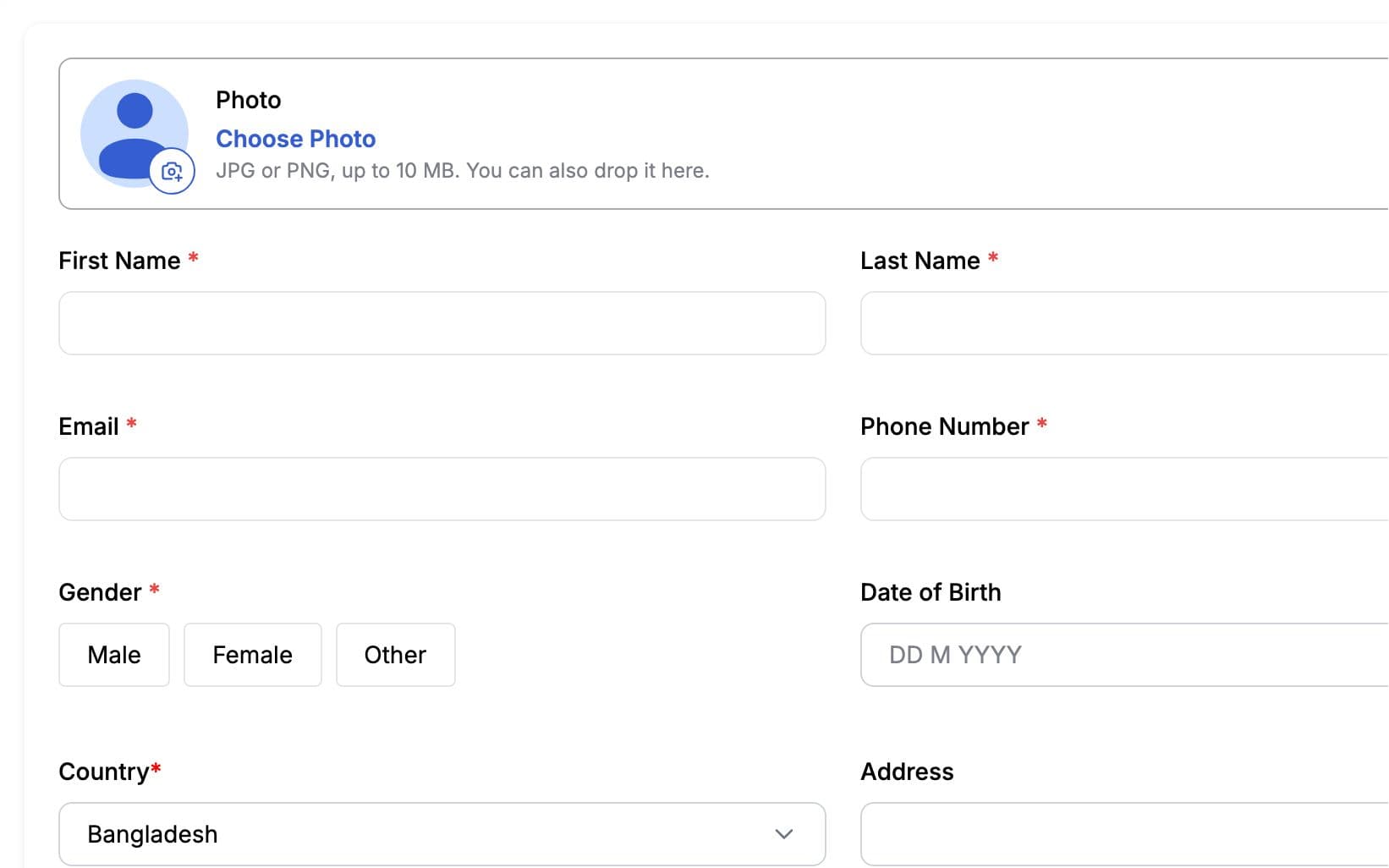
প্রতিটা স্টাফের নাম, কন্টাক্ট, ইউজারনেম, পাসওয়ার্ড, রোল আর কোন ব্রাঞ্চে কাজ করে সেটা দিয়ে অ্যাড করুন। তারা স্টাফ লগইন পেজে নিজের ডিটেইলস দিয়ে সাইন ইন করবে, মালিকেরটা দিয়ে না। তাদের ড্যাশবোর্ডে শুধু তাদের ব্রাঞ্চই দেখাবে। কেউ চলে গেলে, তার অ্যাকাউন্ট ইনঅ্যাক্টিভ করে দিন।
রোল পারমিশন ঠিক করুন
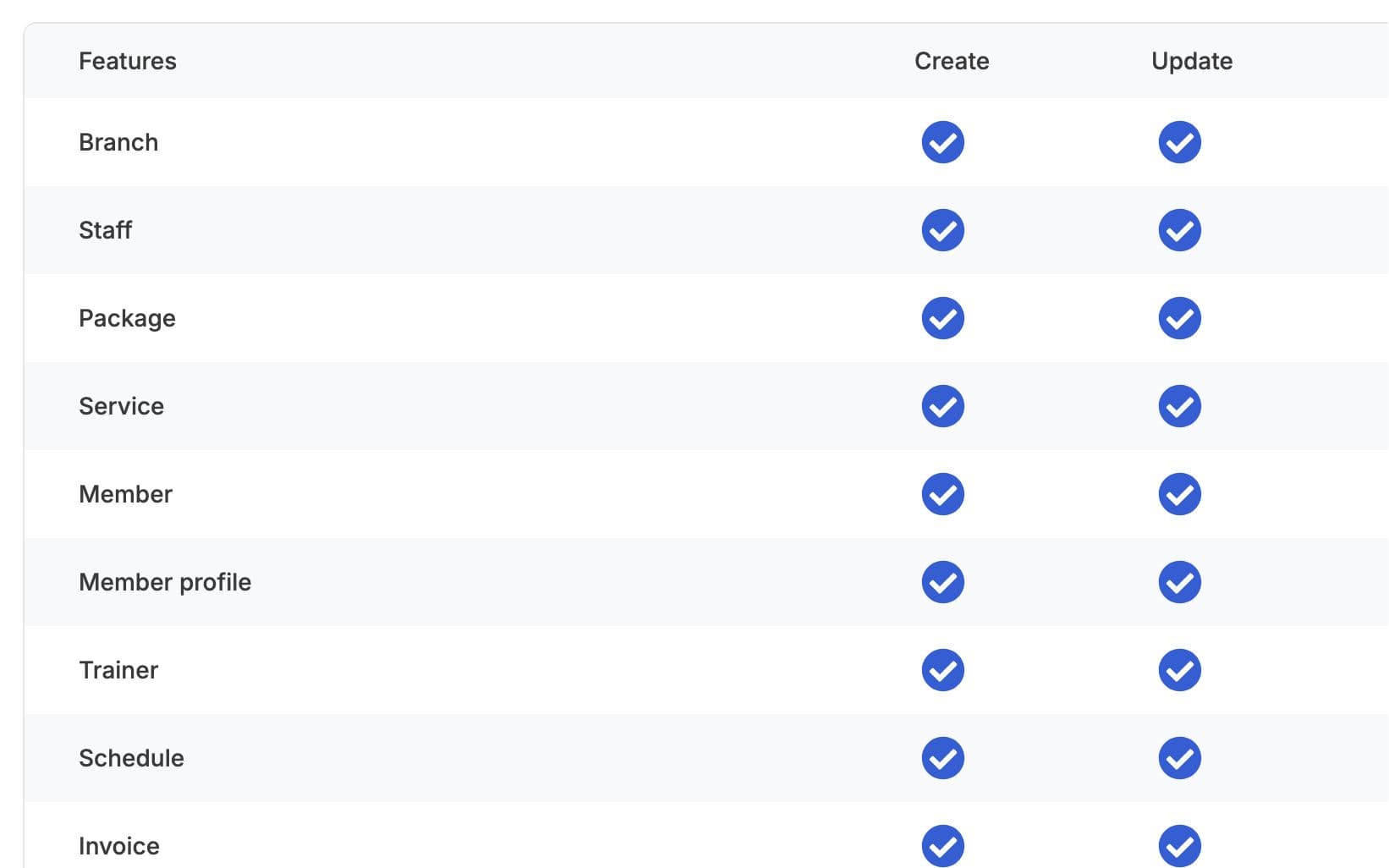
প্রতি জিমে শুরুতে থাকে Admin, Manager আর Staff রোল, চাইলে নিজের মতো যেমন Front Desk বা Accounts রোলও যোগ করতে পারবেন। প্রতিটা রোলের জন্য ঠিক করুন, কে কোন অংশে কী দেখতে, তৈরি, আপডেট বা ডিলিট করতে পারবে: মেম্বার, বিলিং, অ্যাটেনডেন্স, রিপোর্ট ইত্যাদি। পরিবর্তন সবার জন্যই প্রযোজ্য হবে। যেমন, রিপোর্ট অ্যাক্সেস ছাড়া রোল কখনো রিপোর্ট মেনু দেখবে না।
ডিসকাউন্ট সীমা ঠিক করুন
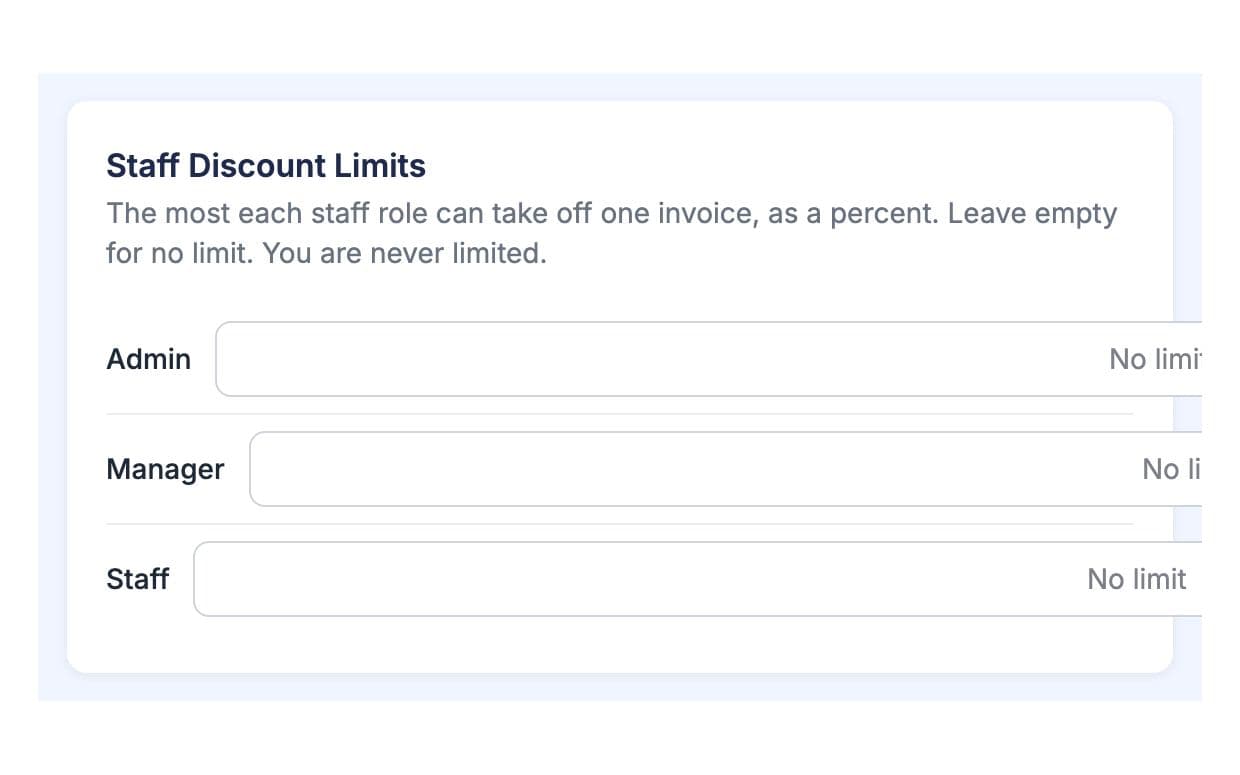
বিলিং সেটিংসে ঠিক করুন, কোন রোল ইনভয়েসে সর্বোচ্চ কত ডিসকাউন্ট দিতে পারবে। ফ্রন্ট ডেস্ক কম ডিসকাউন্ট দিতে পারবে, ম্যানেজার বেশি। প্রতিটা ডিসকাউন্টের কারণ লাগবে, আর সেটা ইনভয়েস হিস্টরিতে রেকর্ড হবে, কোনো ভয়েড বা রিফান্ডের মতো। চাইলে ইনভয়েস থেকেই সব পরিবর্তন দেখে নিতে পারবেন।
আপনার কাজের ধরন মাথায় রেখে তৈরি
প্রতিজন নিজের নামে সাইন ইন করে, তাই মালিকের পাসওয়ার্ড মালিকের কাছেই থাকে।
স্টাফ শুধু তাদের রোল অনুযায়ী স্ক্রিন আর ব্রাঞ্চই দেখতে পাবে, যেগুলো ভুলে নষ্ট করার ঝুঁকি নেই।
ডিসকাউন্ট, ভয়েড আর রিফান্ড ইনভয়েসে রেকর্ড হয়, তাই প্রশ্নের উত্তর মেমোরি থেকে নয়, রেকর্ড থেকেই পাওয়া যায়।
স্টাফ ও রোল-এ যা পাচ্ছেন
স্টাফ ও রোল: সচরাচর প্রশ্ন
জিম মালিক ও ট্রেইনাররা সবচেয়ে বেশি যা জিজ্ঞেস করেন, তার সংক্ষিপ্ত উত্তর।
সব প্রশ্ন →স্টাফরা স্টাফ লগইন পেজে সেই ইউজারনেম আর পাসওয়ার্ড দিয়ে সাইন ইন করে, যেটা আপনি তাদের অ্যাড করার সময় সেট করেছিলেন। তারা মালিকের লগইন ব্যবহার করে না। সাইন ইন করার পর তারা স্টাফ ড্যাশবোর্ড দেখতে পায়, যেটা শুধু তাদের রোল আর যে ব্রাঞ্চে কাজ করে সেটার জন্য সীমিত থাকে। কেউ পাসওয়ার্ড ভুলে গেলে, মালিক নতুন পাসওয়ার্ড সেট করতে পারে।
হ্যাঁ। ফ্রন্ট ডেস্ককে এমন একটা রোল দিন যাতে রিপোর্ট দেখার অনুমতি নেই, অথবা মেম্বার ডিলিট বা পেমেন্ট বাতিল করার পারমিশন নেই। ওই রোলে থাকা স্টাফরা ওই স্ক্রিন বা বাটনগুলো দেখতে পারবে না। আপনি পরে চাইলে রোল চেঞ্জ করতে পারবেন, আর সেই চেঞ্জ সবার জন্যই প্রযোজ্য হবে যারা ওই রোলে আছে।
হ্যাঁ। Billing Settings-এ প্রতিটি রোলে আলাদা ডিসকাউন্ট লিমিট সেট করা যায়, তাই ফ্রন্ট ডেস্ক রোল আপনার অনুমতির বেশি ডিসকাউন্ট দিতে পারবে না। প্রতিটি ডিসকাউন্টের জন্য একটি কারণ দিতে হয়। ডিসকাউন্ট, void আর রিফান্ড সব ইনভয়েস হিস্টরিতে রেকর্ড হয়, তাই আপনি দেখতে পারবেন কখন কী পরিবর্তন হয়েছে।
হ্যাঁ। যেসব ব্রাঞ্চে তারা কাজ করে, সেগুলোতে তাদের অ্যাসাইন করুন। তারা ব্রাঞ্চ পিকার দিয়ে ওই ব্রাঞ্চগুলোতে সুইচ করতে পারবে, কিন্তু যেসব ব্রাঞ্চে অ্যাসাইন করা হয়নি, সেগুলো দেখতে পারবে না। Owner সব ব্রাঞ্চই দেখতে পারে। একাধিক ব্রাঞ্চ চালানো আপনার প্ল্যানের উপর নির্ভর করে।
না। স্টাফরা হচ্ছে যারা ডেস্ক এবং ব্যবসা চালায়, তাদের লগইন ও নির্দিষ্ট রোল থাকে। আপনার জিমের কোচদের আলাদা ট্রেইনার লিস্টে রাখা হয়, যেখানে তাদের ব্রাঞ্চ, দক্ষতা আর রোস্টার থাকে। কোনো কোচ যদি ডেস্কের কাজও করেন, তাহলে তাকেও স্টাফ হিসেবে যোগ করুন যাতে সে সঠিক রোলে লগইন করতে পারে।
একসাথে আরও ভালো কাজ করে
সর্বশেষ আপডেট 16 অক্টোবর, 2026লিখেছেন Sarwar Hossainস্ক্রিনে শুধু ডেমো তথ্য দেখানো হয়েছে
আপনার জিমে স্টাফ ও রোল ট্রাই করুন
আজই ফ্রিতে আপনার জিম লিস্ট করুন, আর প্রস্তুত হলে প্রয়োজনীয় টুলগুলো চালু করুন।